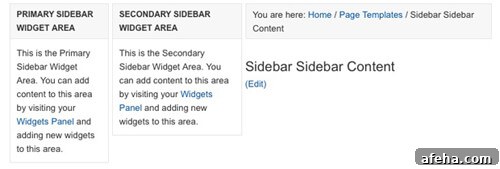
Genesis makes it simple to choose different page layouts on a per-page basis. You can use one, two, or three columns and control the order of the content and sidebar areas. That flexibility is powerful, but it can also create confusion about which sidebar appears in each sidebar area.
For example, selecting the “Sidebar-Sidebar-Content” layout will output the structure as Secondary Sidebar – Primary Sidebar – Content Area. If your site navigation or key widgets live in the Primary Sidebar, they may end up in the middle column rather than where you expect them. Before changing template code, consider whether a simple CSS reordering can solve your problem. Often you can adjust float, flex order, or grid placement to reposition sidebars without modifying PHP. Only use the following approach if you specifically need the secondary sidebar to sit between the primary sidebar and the content area at render time.
The technique below demonstrates how to programmatically swap which sidebar is rendered in each sidebar area for the Sidebar-Sidebar-Content layout. It checks the current site layout and, when it detects sidebar-sidebar-content, it removes the default primary and secondary sidebar actions and reattaches them in reversed positions so the Secondary Sidebar is displayed in the primary sidebar location and the Primary Sidebar is displayed in the secondary sidebar location.
This approach is concise and avoids duplicating sidebar markup. It leverages Genesis action hooks to unregister and re-register the sidebar callbacks, ensuring widgets and sidebar configuration remain intact while changing where they are output in the page structure. Use this in a child theme’s functions.php or in a site-specific plugin. Test on a staging environment first and always back up before making changes.
Clean PHP example (place in your child theme functions file):
Notes and best practices:
- Prefer CSS solutions if possible. Modern CSS (flexbox and grid) can reorder visuals without changing markup order, which is often better for accessibility and screen readers.
- Only use the action-swap approach when you need the actual sidebar output order changed in the HTML, not just the visual order.
- Test thoroughly across templates and devices. Changing action hooks can affect plugins or other theme code that relies on the default sidebar positions.
- Keep backups and test in a development or staging environment before deploying to production.
By carefully swapping the registered sidebar callbacks when the Sidebar-Sidebar-Content layout is active, you can control which widget areas appear in each column without copying or duplicating sidebar code. This keeps your widget configuration centralized and makes it easier to maintain consistent content across different layouts and pages.