This is a sponsored conversation written by me on behalf of Cricut. The opinions and text are all mine.
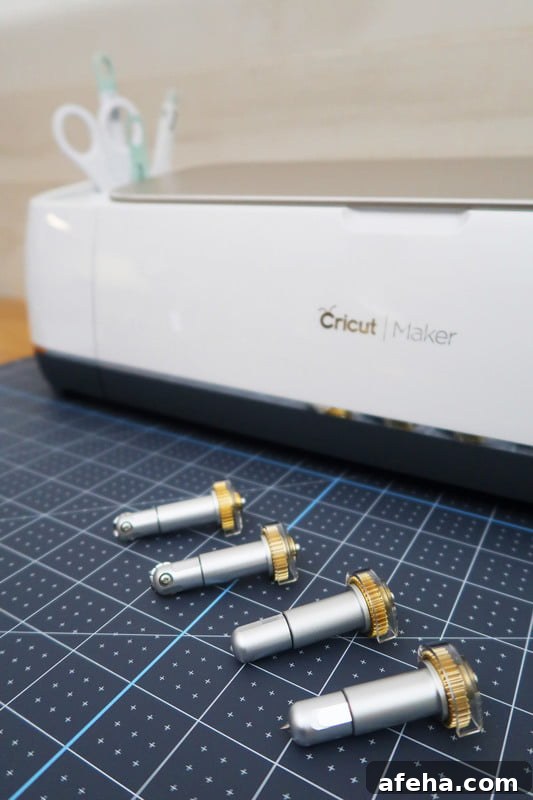
A guide to the new Cricut Maker tools, including the Adaptive QuickSwap tools: the Perforation Blade, Wavy Blade, Fine Debossing Tip, and Engraving Tip
This summer Cricut expanded the Maker’s capabilities with several new tools for the Adaptive Tool System. In addition to the scoring wheel and double scoring wheel released earlier, Cricut introduced four new tools: the Perforation Blade, Wavy Blade, Fine Debossing Tip, and Engraving Tip. These tools broaden what Maker can do, enabling precise decorative cuts, detailed debossing, clean perforations, and surface engraving on a range of materials.
What are the Cricut Maker Adaptive Tools?
- Perforation Blade: Creates uniform perforated lines for easy tear-offs and peel-away pieces on paper, cardstock, acetate, poster board, and similar materials.
- Wavy Blade: Cuts a fun wavy edge on vinyl, iron-on, paper, cardstock, fabric, and more for a decorative finish.
- Engraving Tip: Carves shallow grooves into hard, flat surfaces like acrylic so you can customize and add texture without cutting all the way through.
- Fine Debossing Tip: Produces crisp, detailed debossed designs on paper and cardstock, creating raised outlines that add depth and structure to projects.
- Scoring Wheel Tip: Creates deep, precise score lines for clean folds and professional-looking finished pieces.
What is an Adaptive Tool System?
The Adaptive Tool System is the technology that enables the Maker to use these advanced tools. It combines three core capabilities that deliver professional-class cutting and finishing:
- Up to 10 times (4 kg) or more cutting force compared with the Explore line, for cutting thicker or denser materials.
- An advanced steering system that actively controls blade direction for precise cuts and details.
- Tool detection and verification that checks you have the correct blade or tip installed and prompts you to change it if necessary.
What is the QuickSwap Housing System?
The QuickSwap housing lets you interchange tips on a single housing, and the Cricut Maker detects which tip you’ve placed. Once you own a QuickSwap housing, you can buy only the individual tips, making each specialized tool more affordable and versatile.
Cricut Fine Debossing Tip
The Fine Debossing Tip creates crisp, detailed debossed designs ideal for cards, invitations, stationery, and decorative projects. One creative use is debossing watercolor paper to create a ready-made “coloring sheet” where the indented lines guide painting. This technique makes watercolors approachable for any skill level and adds dimension to the finished piece.
Here’s what you’ll need
- Cricut Maker
- Cricut Light Grip Mat
- Fine Debossing Tip (QuickSwap)
- Fine-Point Blade
- 140 lb watercolor paper
- Watercolor paints and brushes
- A Design Space file with the artwork set to deboss and the cut border set to cut
In Design Space, set the floral graphic to deboss and the surrounding rectangle to cut. When you press Make It, choose watercolor paper as the material and follow the prompts for which tool to load first. Keep your Design Space plug-ins up to date so the new tool options (cut, draw, score, engrave, deboss, wave, perforate) appear in the menu.
Load the watercolor paper onto the Light Grip mat and let the Maker deboss the lines. The Maker detects the tool installed and will alert you if the wrong tip is in place. After debossing, paint inside the debossed outlines. Start with concentrated color and outline details, then use more water to blend and fill larger areas. The debossed lines add structure and a polished feel — a lovely option for wedding invitations or elegant stationery whether you paint them or leave them uncolored.
Cricut Wavy Blade
The Wavy Blade cuts a decorative, scalloped-like edge for a whimsical finish. Use it on watercolor botanicals, cards, envelopes, vinyl decals, iron-on designs, gift tags, or collage pieces. It works well with vinyl, iron-on, paper, cardstock, and fabric. In Design Space the path may appear smooth and straight, but when you choose the wavy blade the Maker will cut a wavy edge for you.
Cricut Engraving Tip
The Engraving Tip creates shallow grooves by removing a small amount of surface material to add permanent designs or text to acrylic and other hard, flat materials. It doesn’t cut completely through; instead it etches the surface to create a clean, engraved look. Note: the engraving tip works well on acrylic but not on glass; acrylic offers a similar clear, professional appearance.
Here’s what you’ll need for engraving
- Cricut Maker
- Cricut Strong Grip Mat
- Engraving Tip (QuickSwap)
- Acrylic panel (remove protective film before engraving)
- Masking tape to secure the panel to the mat
- A Design Space file prepared for engraving
Secure the acrylic to a Strong Grip mat with masking tape and move the machine’s white rollers to the right before loading. In Design Space choose the engraving setting and load the Engraving Tip into the B carriage. Follow on-screen prompts to load the mat and start engraving. After the cut, brush away any debris with a dry brush. The results are crisp and precise for signs, labels, and decorative elements.
Cricut Perforation Blade
The Perforation Blade makes uniform, finely spaced perforations for tear-off elements and easy peel-away sections. It’s ideal for paper, cardstock, acetate, poster board, and other similar materials when you want a clean, consistent tear line for functional or decorative pieces.
These new Adaptive Tools expand the Maker’s creative potential by adding precision debossing, decorative edging, reliable perforations, and surface engraving. With QuickSwap housings and Design Space integration, switching between creative techniques is easier than ever.